All of the screenshots below are for Apple mobile devices, but everything works in a very similar way for Android phones, and on a web browser.
GETTING STARTED IN CHURCH CENTER
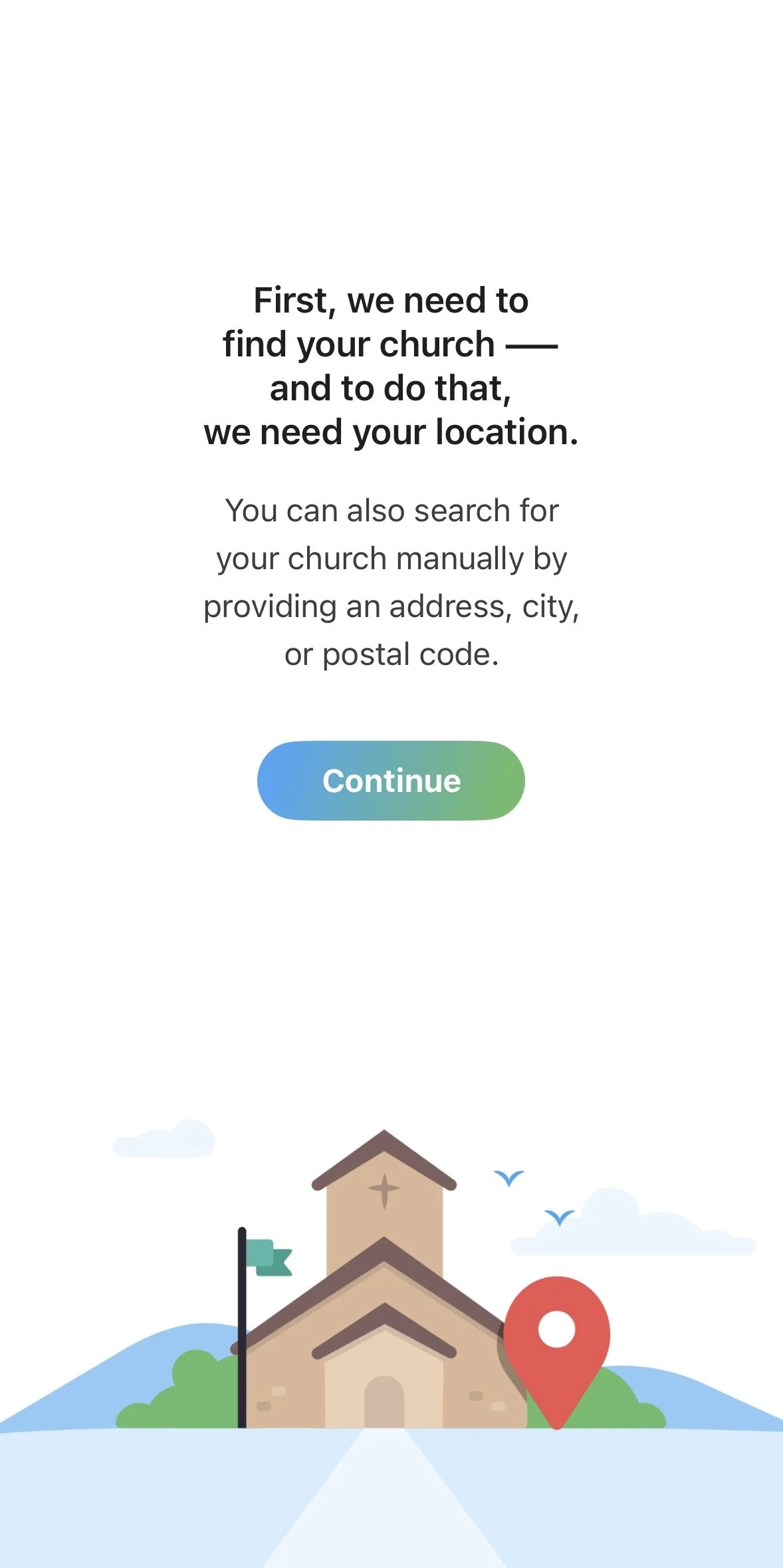
After you download Church Center from the app store, these will be the first two screens you’ll see.
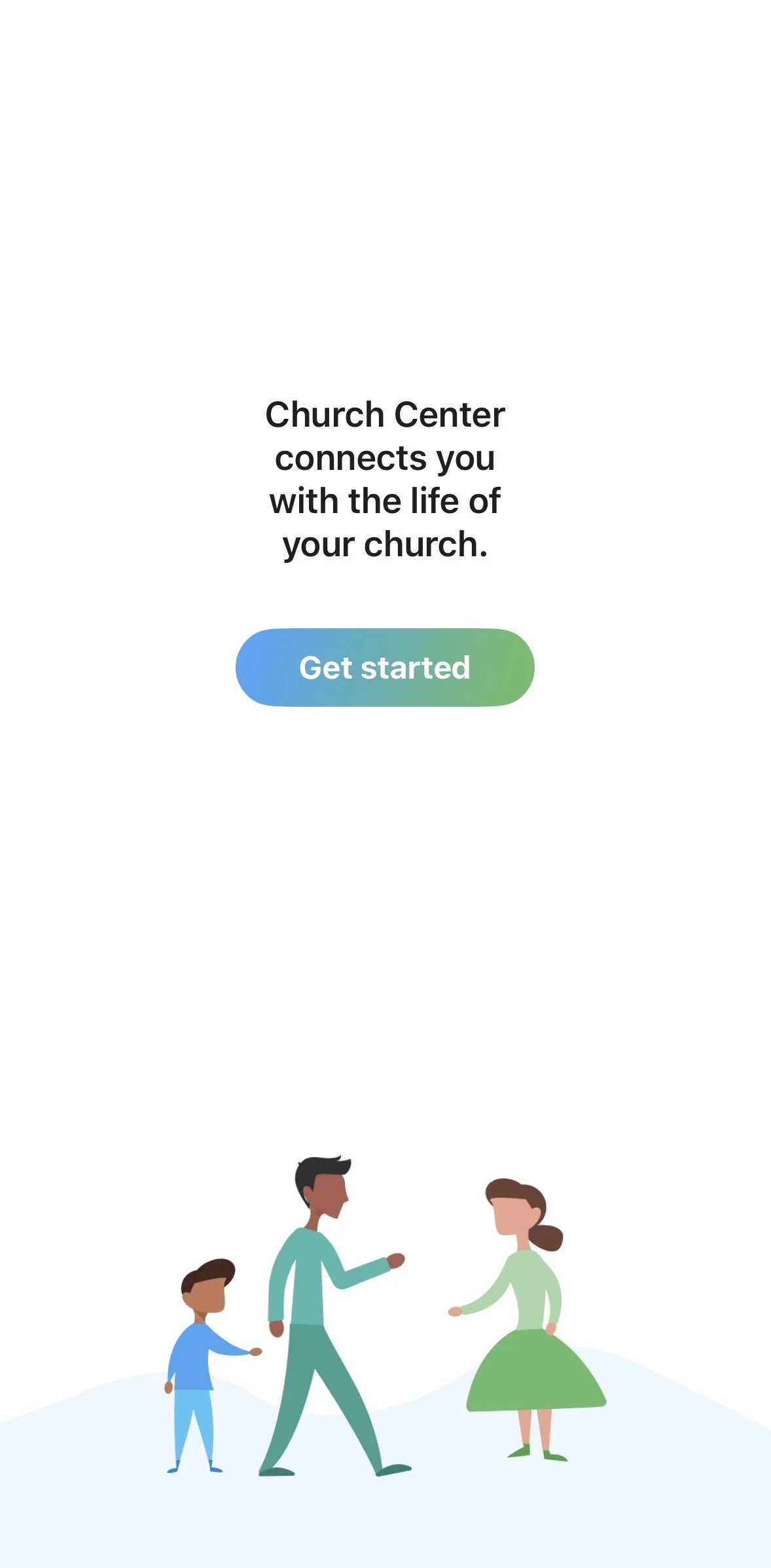
It will then prompt you to find your church. You have two options to find Resurrection:
1) You can use your location settings on your phone. NOTE: This will only work if you’re within a relatively close distance to the church.
OR
2) You can click “Don’t Allow” for using your location, and you can manually type in the church address or name (as shown in the far R screenshot)
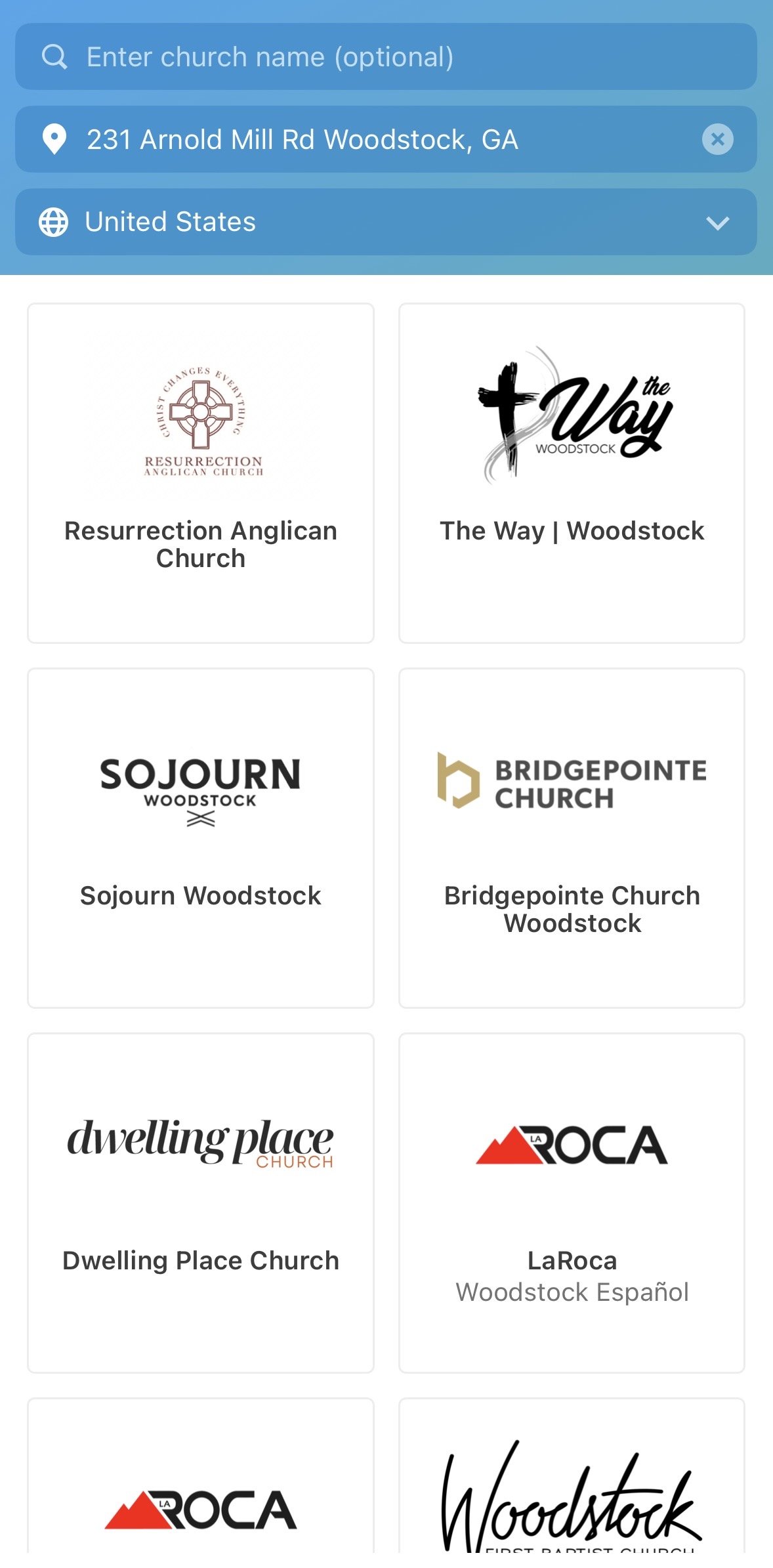
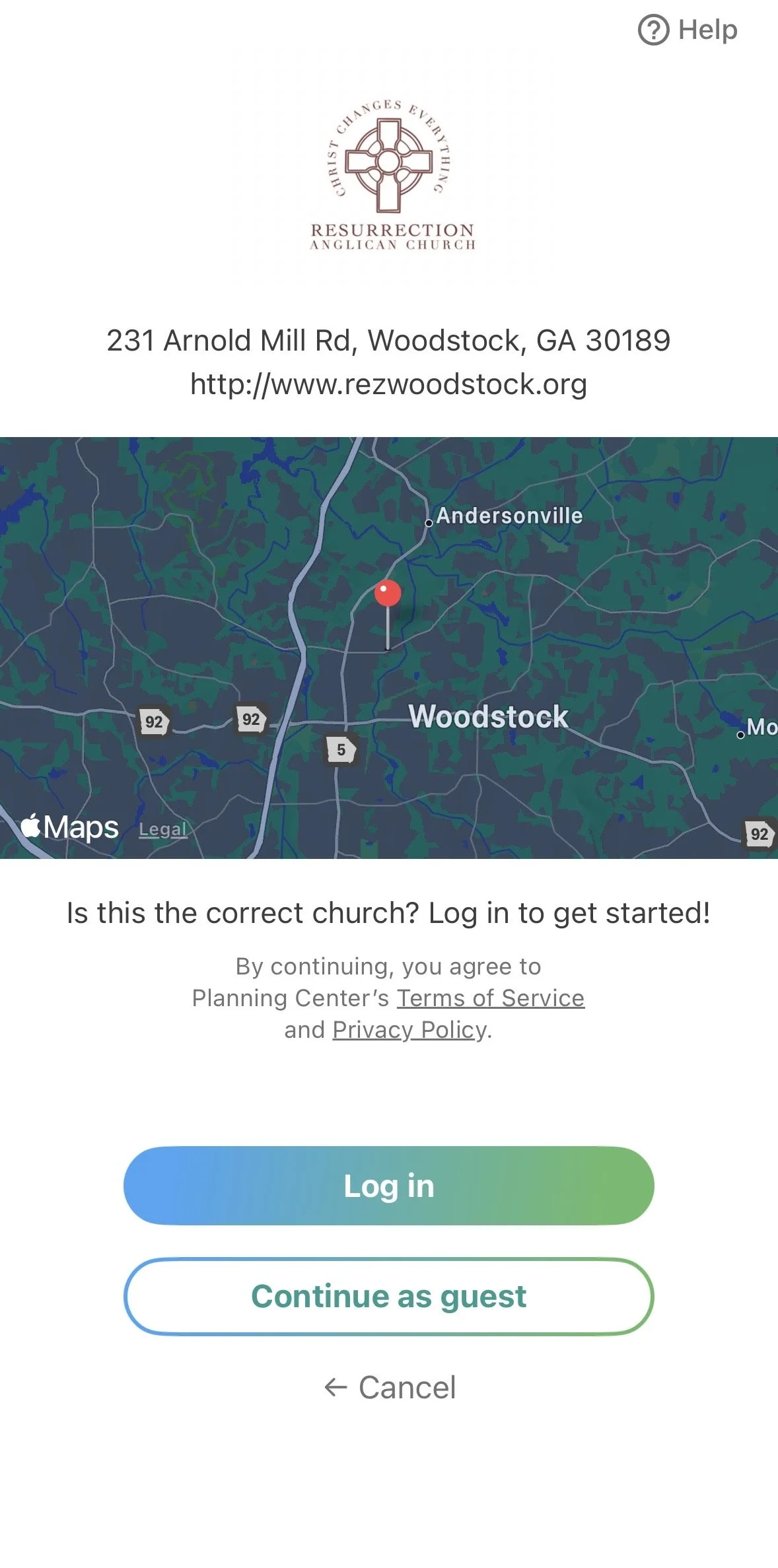
Once you select your church from the list, you’ll see this screen. You’ll confirm by clicking “Log in” OR you can also “continue as guest”
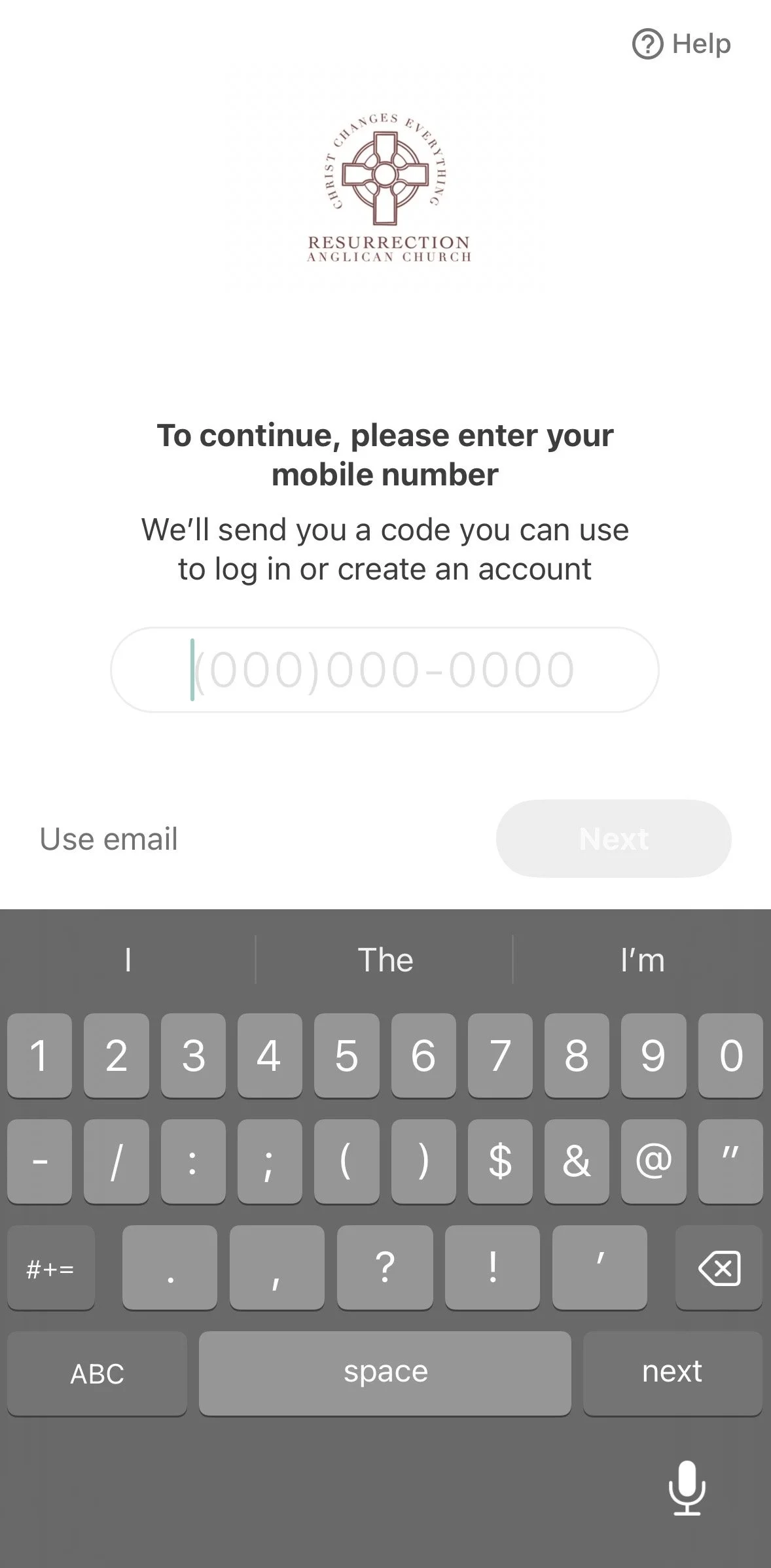
Finally, it will have you login (or create your account) by either using your phone number OR your email.
IMPORTANT NOTE: Church Center uses your Planning Center profile as your login, if you already have a Planning Center account.
If you don’t have your phone number listed in your Planning Center account then don’t login to Church Center using a phone number or else it will create a new, different account for you.
You can click “Use Email” to login with your email instead.
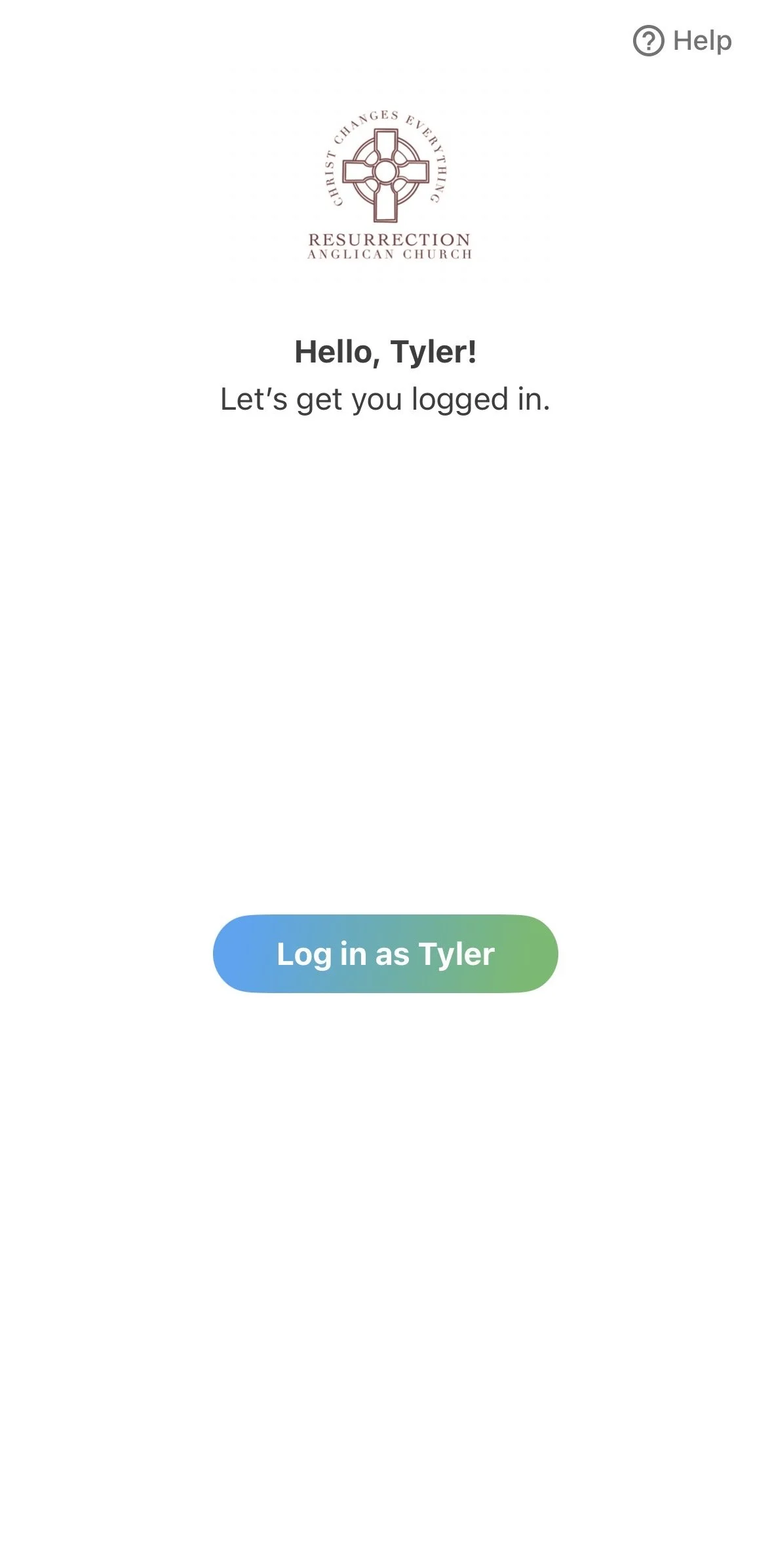
Additionally, if you need more visuals, here’s a helpful tutorial video on how to find our church on Church Center for when you’re just getting started.