All of the screenshots below are for Apple mobile devices, but everything works in a very similar way for Android phones, and on a web browser.
How to Access Your Schedule
To access any dates you're scheduled to serve, tap your profile picture (or initials) in the upper right corner of the screen.
Your Schedule will appear below your profile info and notifications.
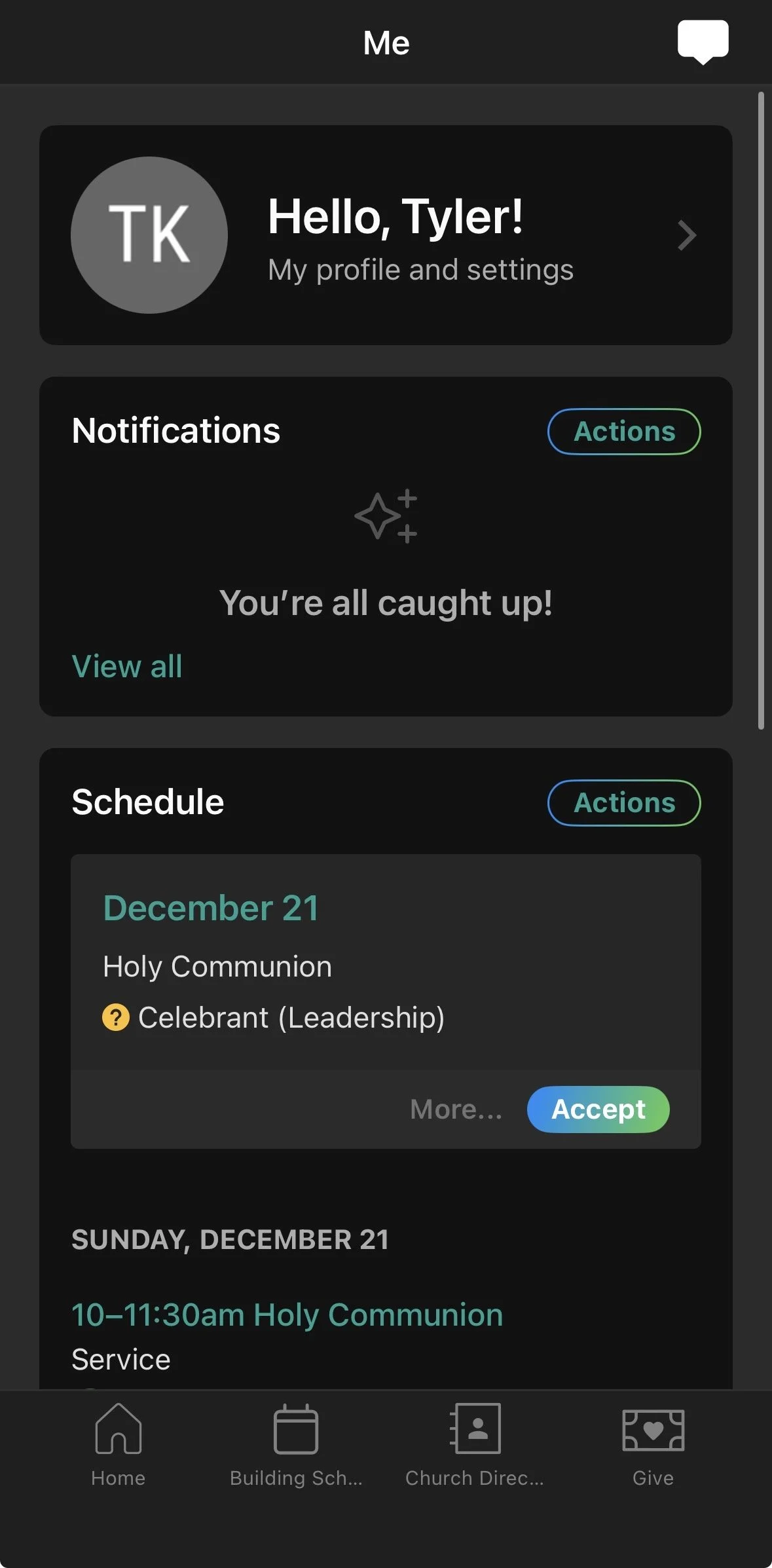
Things you can do in this section:
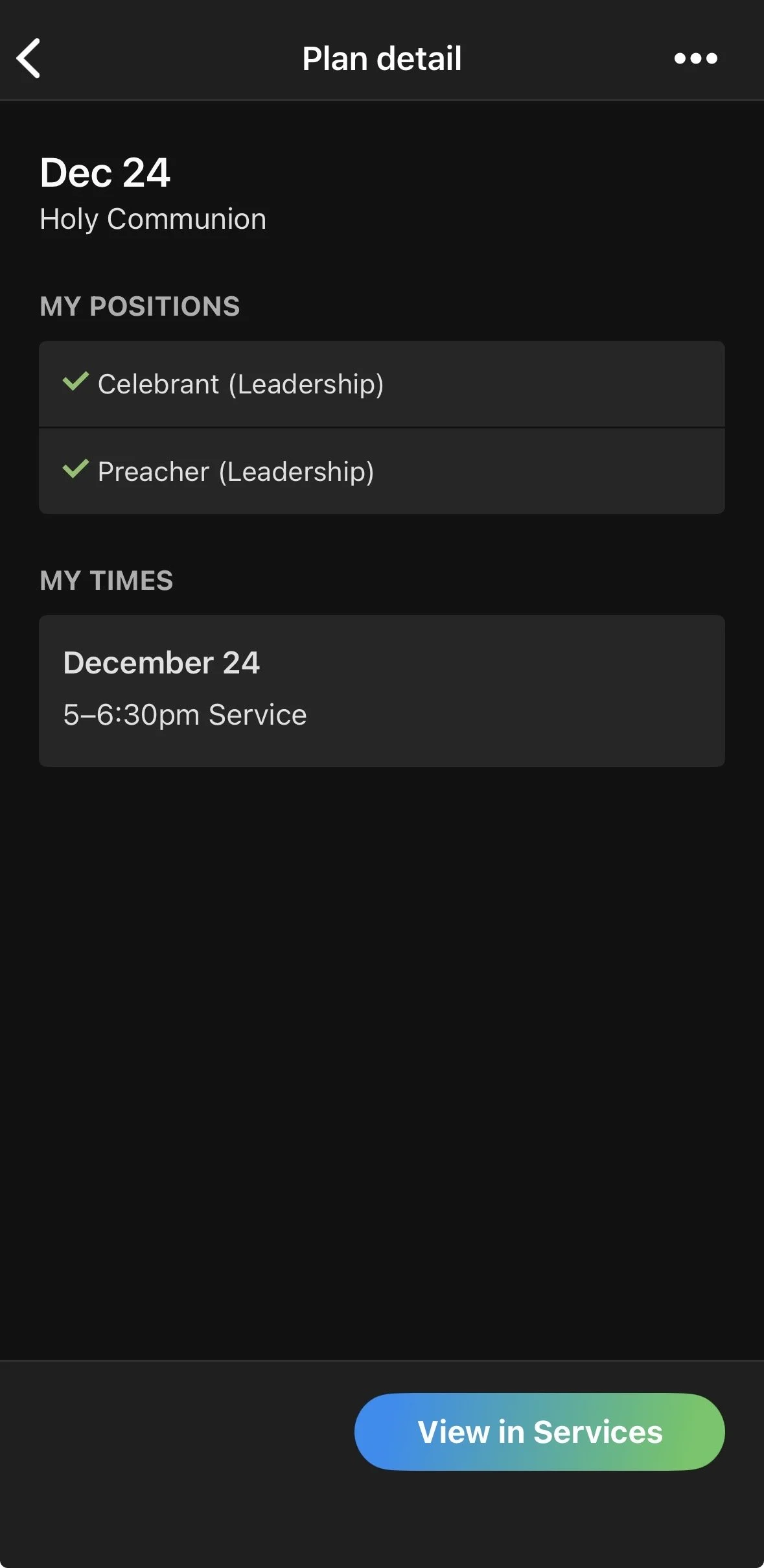
Accept or decline requests. Any new requests will be listed at the top of your schedule.
*Please respond to all requests!
View your schedule. Requests you have already accepted and dates you have blocked out will show up in chronological order. (Tap View all to see the full list.)
Click on a date to view more details about your assignment
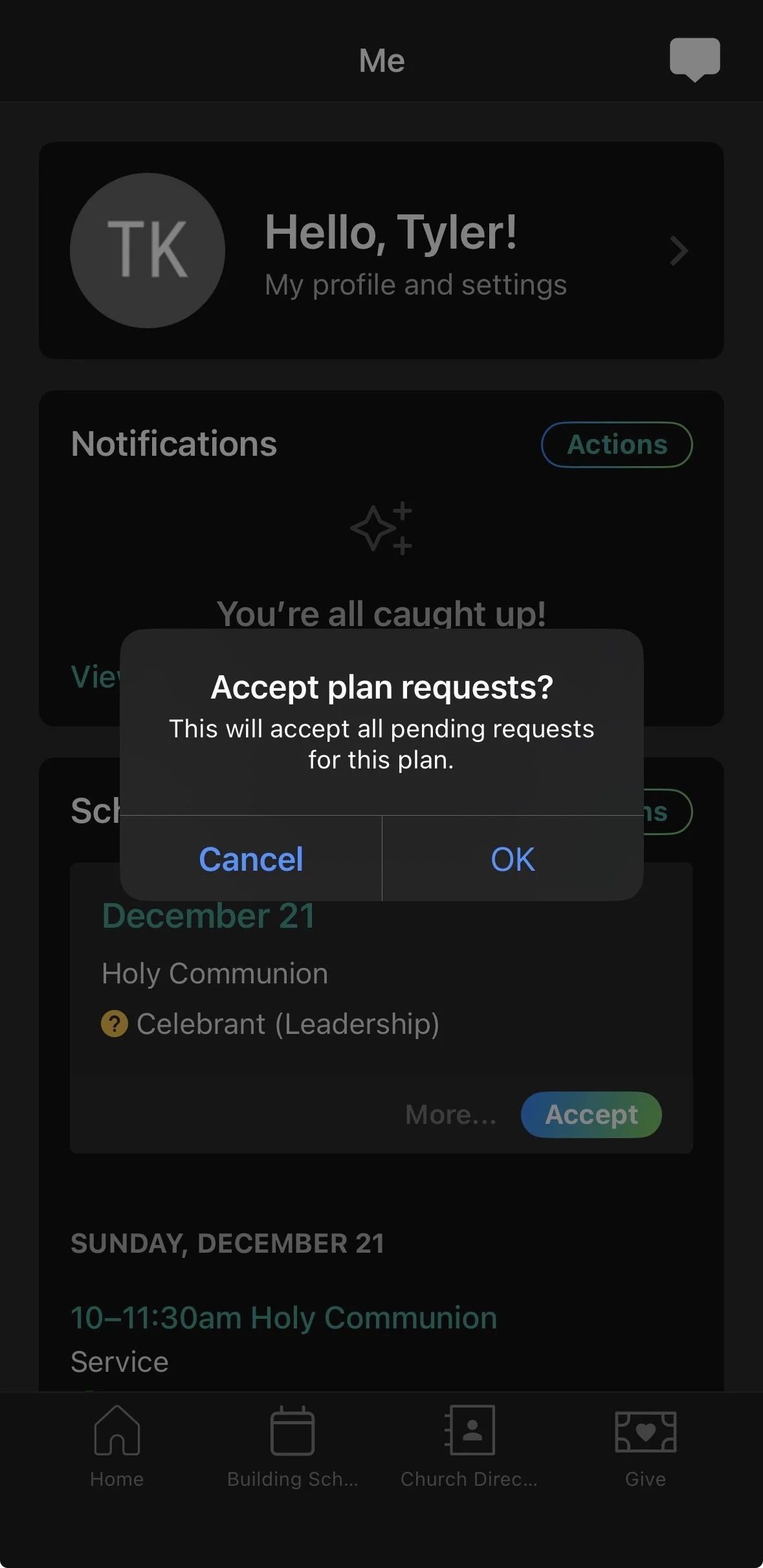
If you need to see who is serving alongside you, or want to see things like the Scripture readings, click the View in Services button to access Planning Center Services. Planning Center Services is where the full service plan is held.
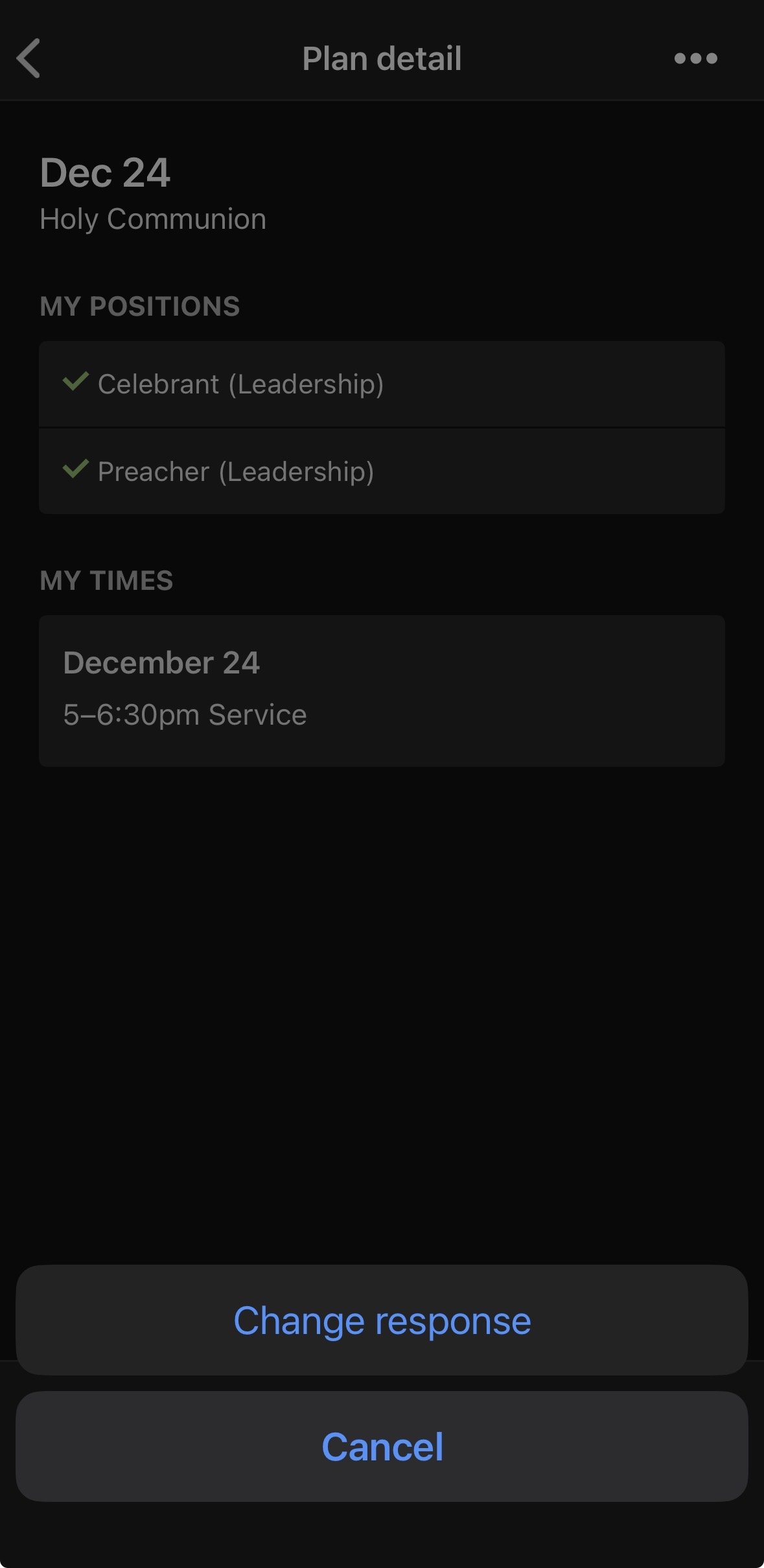
Option 2 - Add a Blockout Date
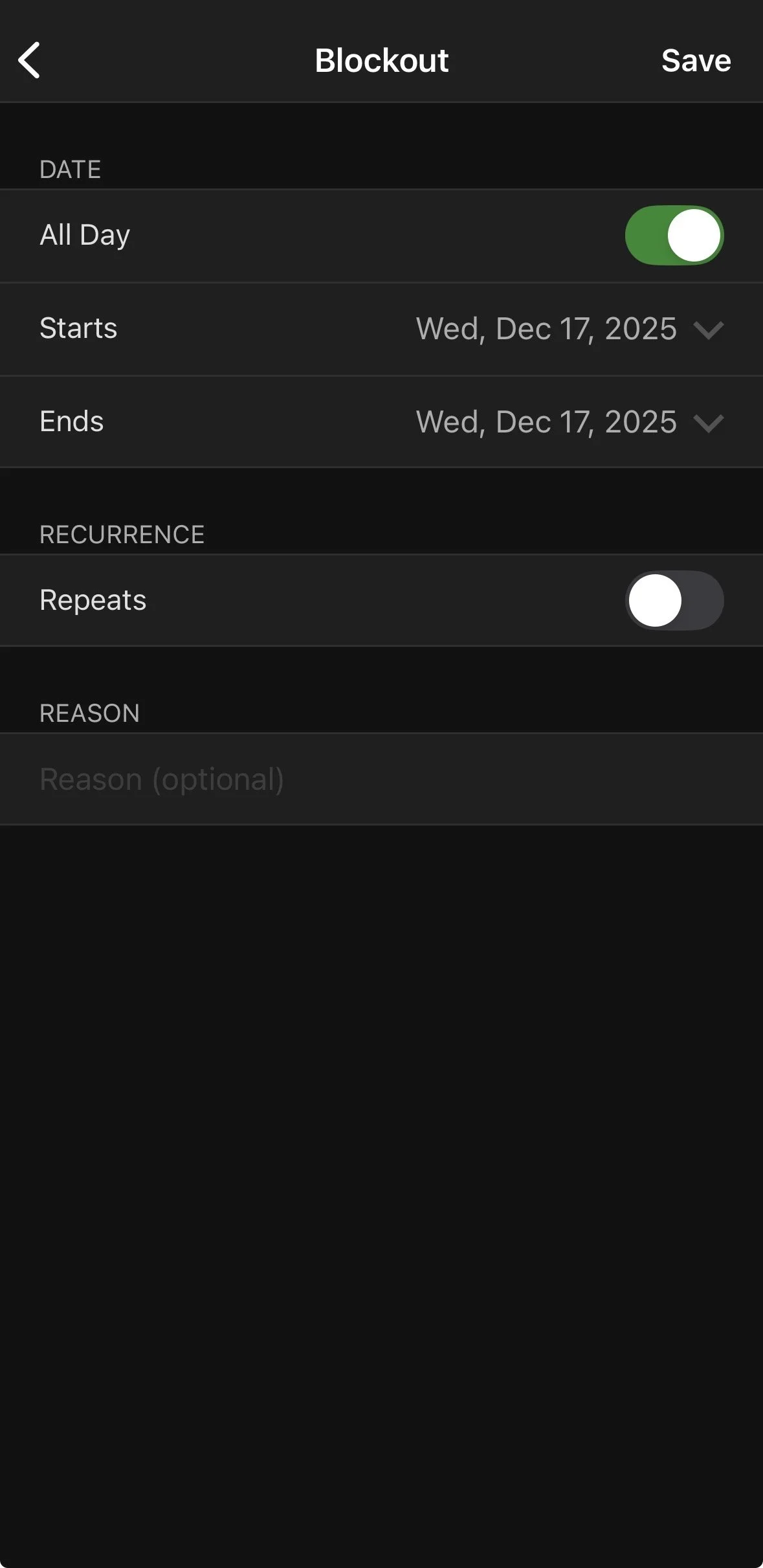
If you're planning ahead, and know of a Sunday on which you are NOT yet scheduled and on which you will be unavailable, please block it out. Here's how you do that:
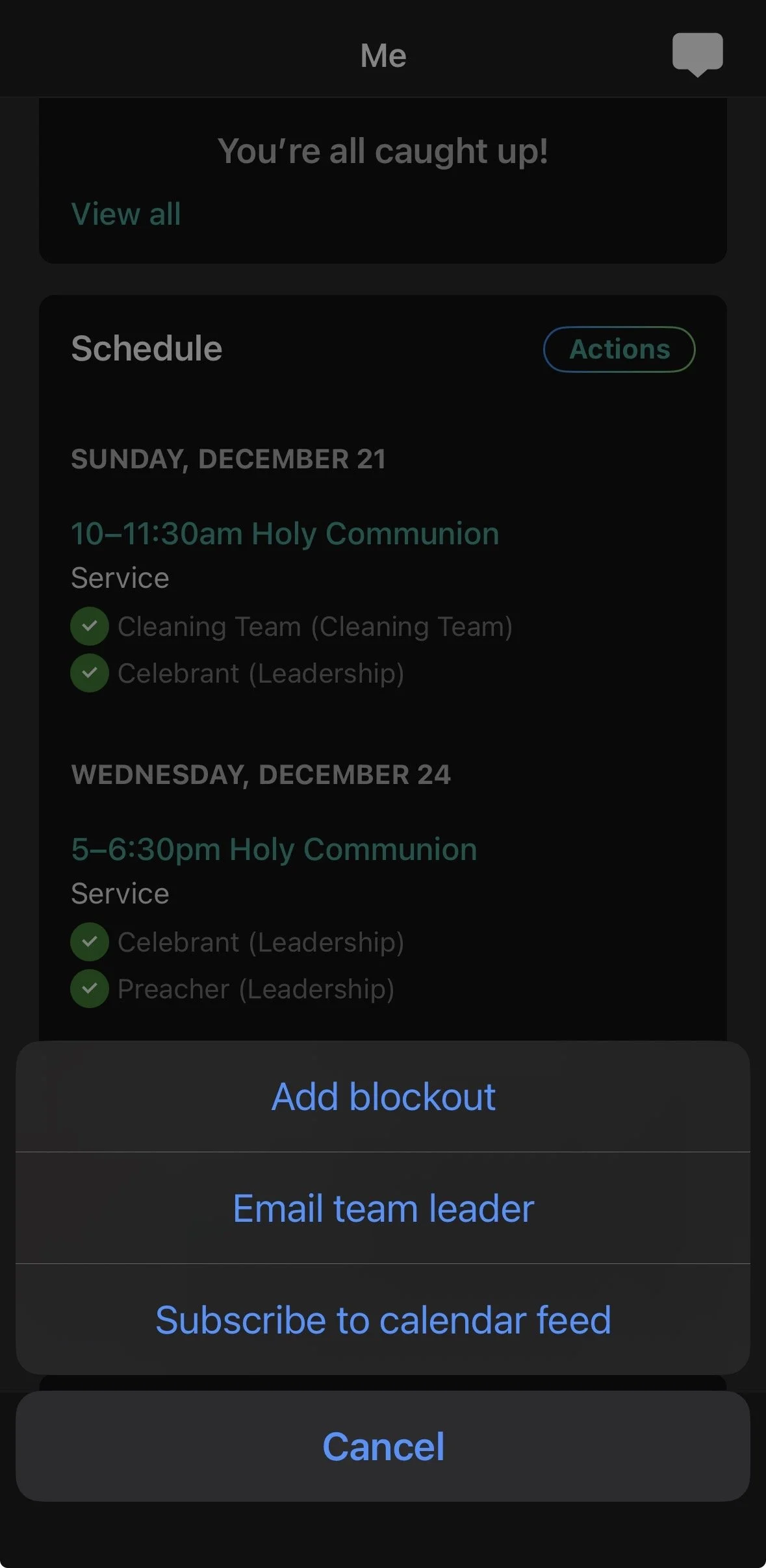
From the Me page, in the Schedule section, click Actions, and then Add Blockout.
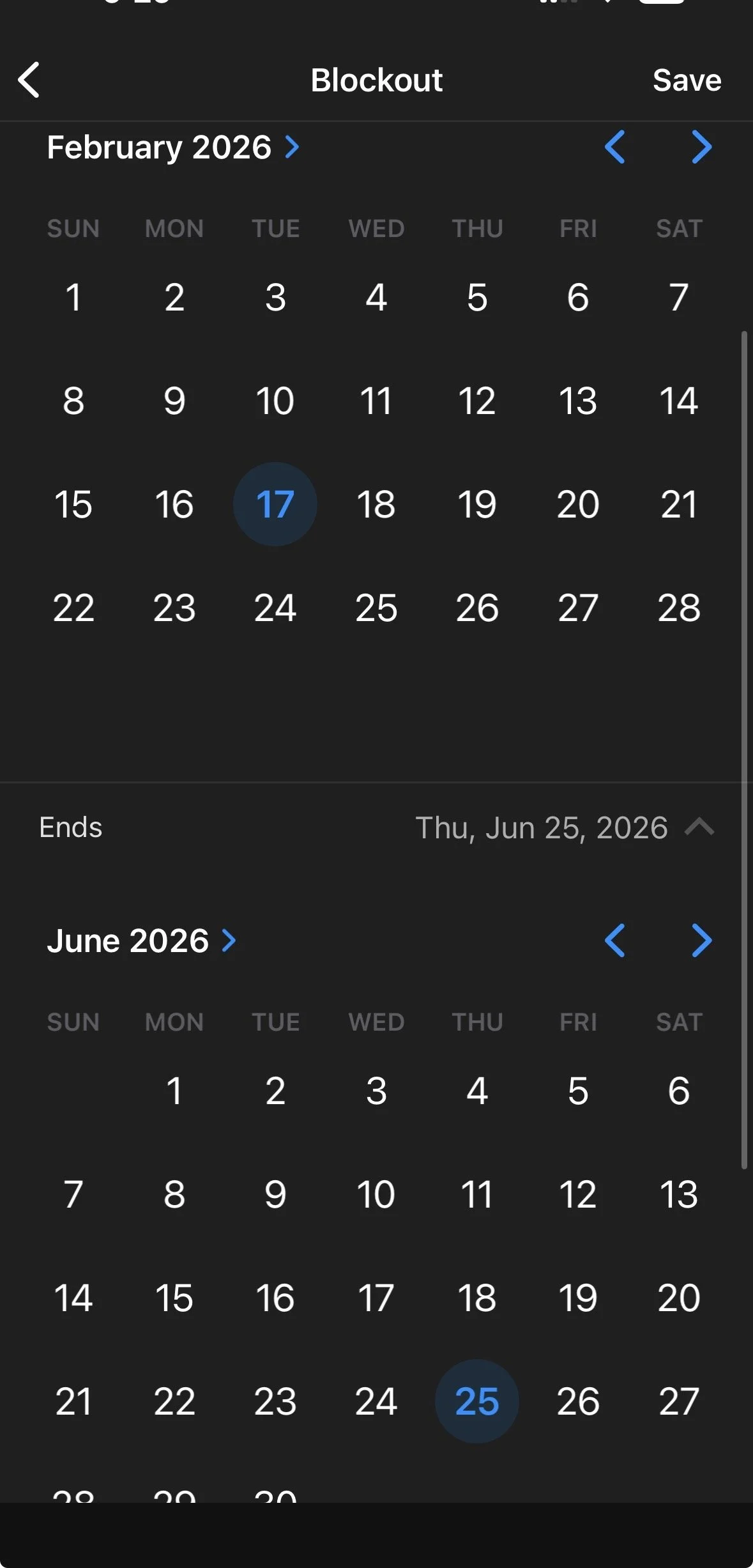
If you're missing several Sundays in a row, feel free to add a long blockout chunk to save a few steps.
Add your schedule to your calendar
You can also Subscribe to your calendar feed using the Actions button shown in the above screenshots, and have the arrival times and any notes sync directly to your calendar.
ABOUT SERVING REQUESTS
If you’re unable to serve on a date when you were previously scheduled, please do not find a replacement or switch with someone on your own. This makes it more complicated for our master schedule if we’re not sure who is actually serving when. Instead, simply change your response to “No” following one of the above tutorials.
Please accept or deny all of your requests! When we have spots that aren’t confirmed, we will assume that you cannot serve and will find a replacement for you.
Please respond to your requests either on Church Center, or on Planning Center Services. If you respond to a request via a personal email, then it creates more work for us to manually accept or deny your requests for you.
You will receive an automated reminder from Planning Center on the Wednesday of the week you’re serving. This is automated, so there’s no need to respond to it.